Savyant Systems ERPNext company

ERPNext v16 · Barcode Generation app

ERPNext barcode app for end-to-end traceability

Label every batch and serial number at inward, scan it through production and dispatch, and see where each unit is at any time. One label format, one scan engine and one audit trail, inside ERPNext's own screens.

In short

The Savyant Barcode Generation app adds barcode and QR traceability to ERPNext v16. It generates Code 128 and QR labels from Purchase Receipts and Stock Entries, checks every scan with Continuous Scan on Stock Entries and Delivery Notes, can block a dispatch that was not scanned, and keeps an append-only tracking log, so you can see where each batch or serial number is. It is built and supported by Savyant Systems, an ERPNext implementation company.

Updated 5 November 2026 by Savyant Systems
End-to-End Barcode Traceability for ERPNext: Savyant Barcode Generation app
  • Built forERPNext v16
  • Barcode typesQR code (2D) and Code 128 (1D)
  • Label keysSerial No, Batch No or Item Code
  • ScanningCamera Scan and Continuous Scan, plus hardware scanners
  • Works onPurchase Receipt, Stock Entry (including Manufacture) and Delivery Note
  • RecordsBarcode Label Batch, Barcode Tracking Log, Genealogy Link and Barcode Stock Status report

Video chapters

Jump to any part of the walkthrough

How it works

The process flow, from receipt to customer

The app follows stock through three ERPNext documents. The same label and the same scan engine are used at every stage.

STAGE 01

Inward

Purchase Receipt

  1. Book the Purchase Receipt as usual
  2. Choose Barcode > Generate Barcodes on the receipt
  3. Pick the symbology for each row: QR (2D) or Code 128 (1D)
  4. The label count follows how the item is tracked: one label per batch, or one per unit
  5. Print the labels or save them as PDF. They are stored as a Barcode Label Batch

In the demo, 4 batch labels and 20 unit labels were generated in one click.
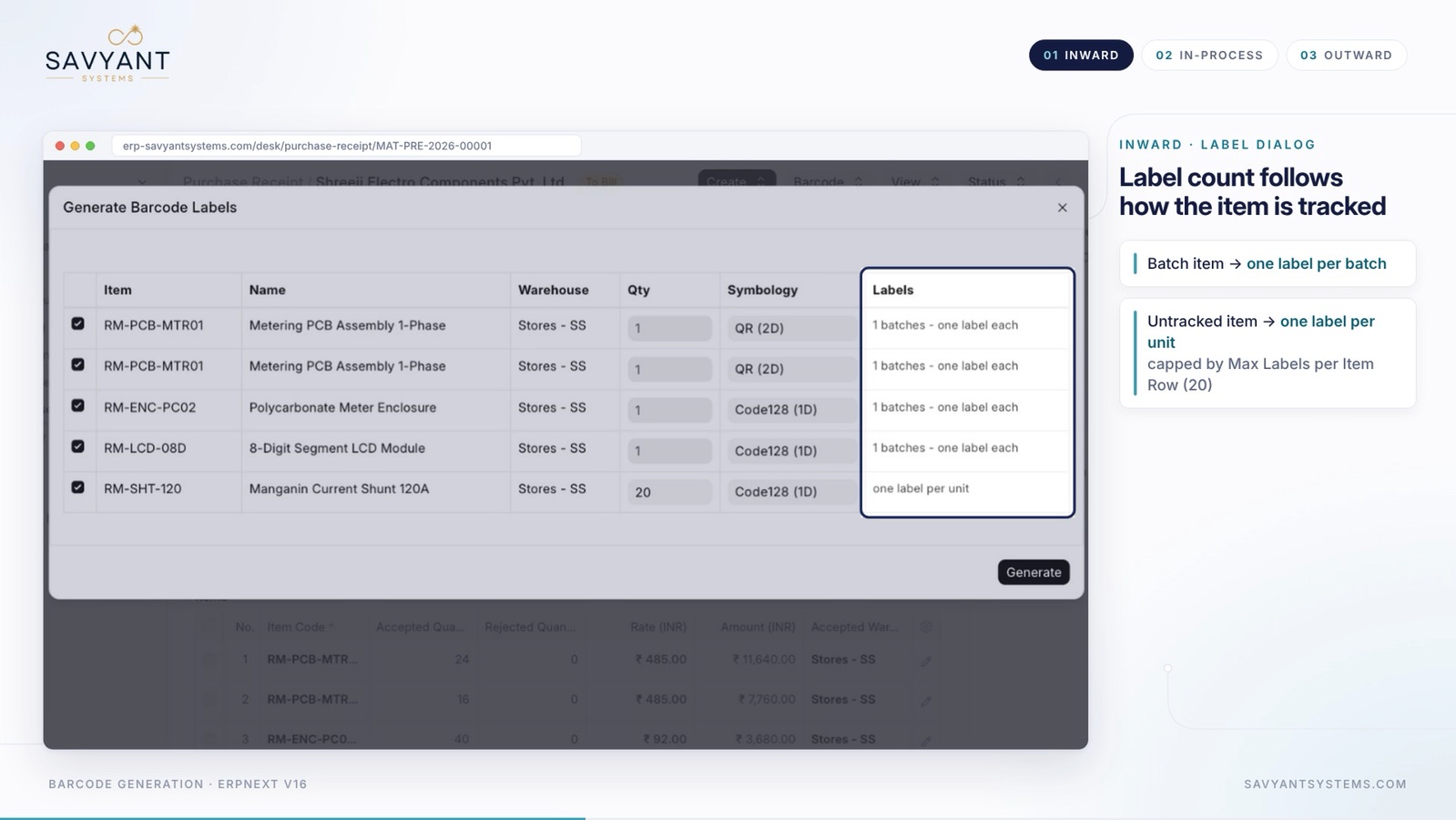
Generate Barcode Labels dialog on an ERPNext Purchase Receipt, showing item, warehouse, quantity, symbology and label count per row
The Generate Barcode Labels dialog on a Purchase Receipt.

STAGE 02

In-process

Work Order and Stock Entry

  1. Create the Material Transfer for Manufacture Stock Entry against the Work Order
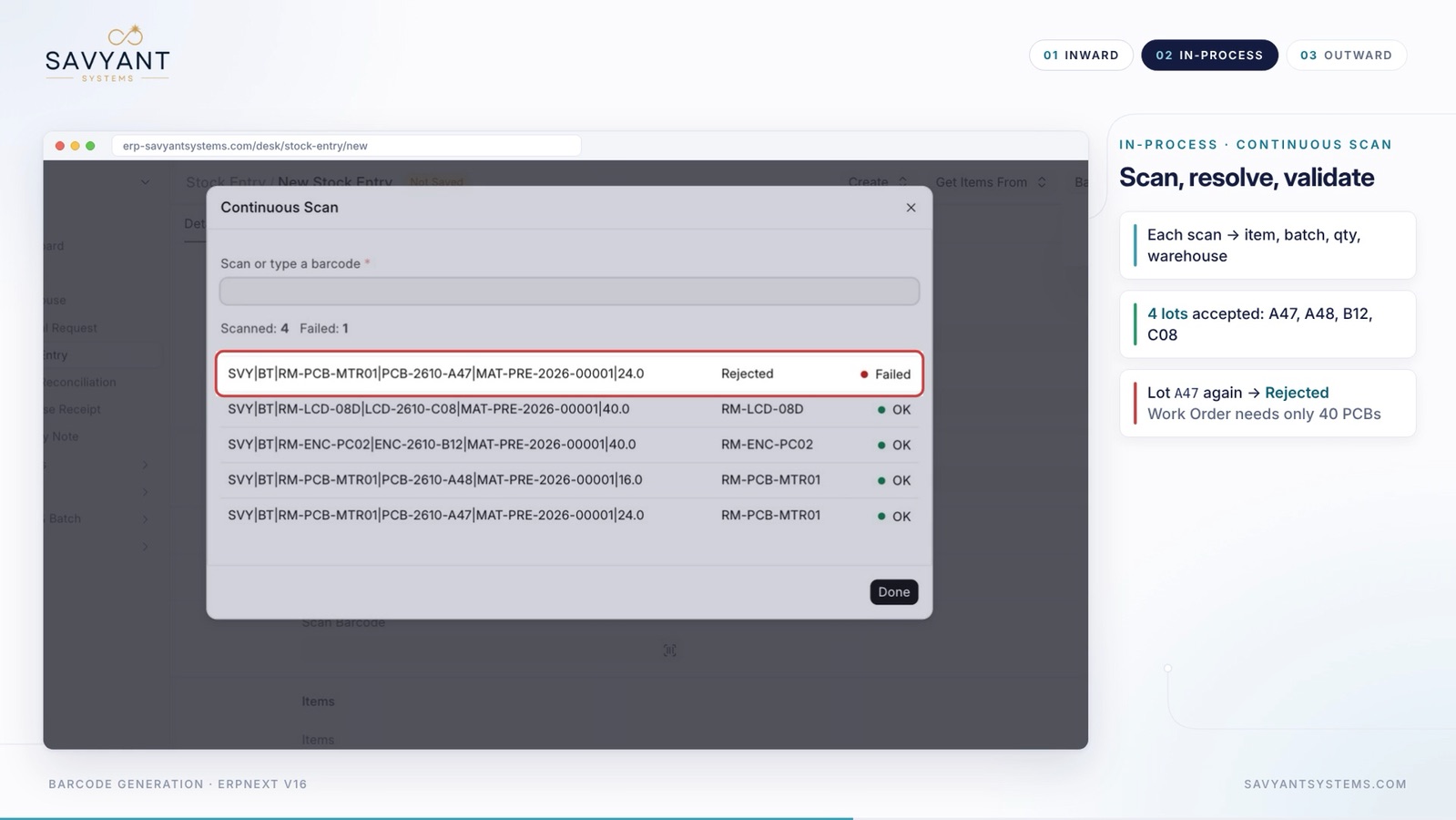
  2. Choose Barcode > Continuous Scan and scan the raw material labels
  3. Each scan resolves to item, batch, quantity and warehouse
  4. Scans that do not fit are rejected, such as a lot that the Work Order no longer needs
  5. Materials move to Work In Progress. On the Manufacture entry, only the finished good row is offered for labels, because the inputs are already labelled

In the demo, 4 lots were accepted, a repeated lot was rejected, and 40 serial labels were printed for the finished goods.

ERPNext Continuous Scan dialog on a Stock Entry showing four accepted scans and one rejected scan
Continuous Scan on a Stock Entry: four lots accepted, one rejected.

STAGE 03

Outward

Sales Order and Delivery Note

  1. Create the Delivery Note from the Sales Order
  2. Scan each unit with Continuous Scan. A serial that is scanned twice is blocked as a duplicate
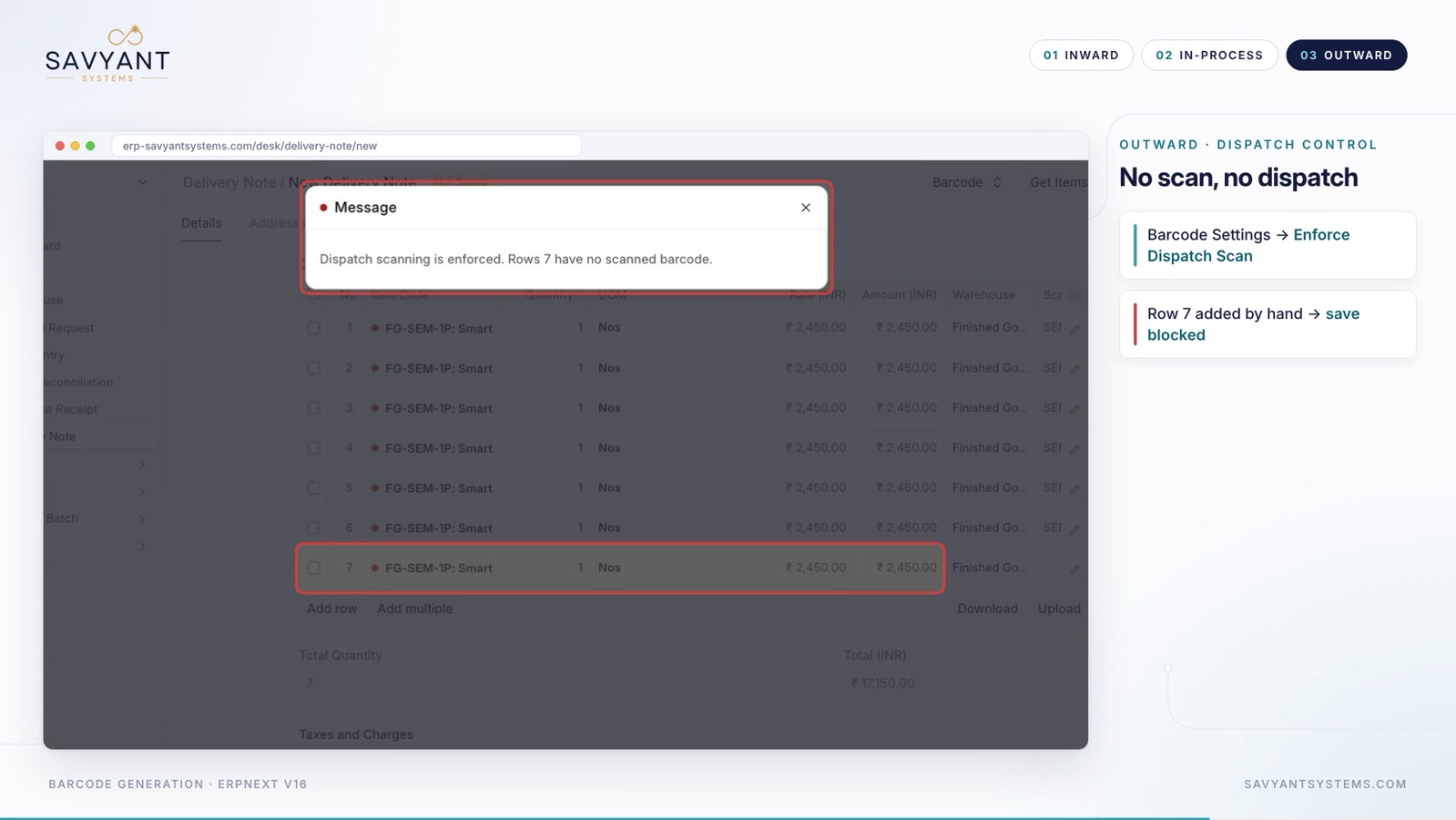
  3. With Enforce Dispatch Scan switched on, a row added by hand cannot be saved
  4. Submit the Delivery Note. Each scanned serial is marked Dispatched
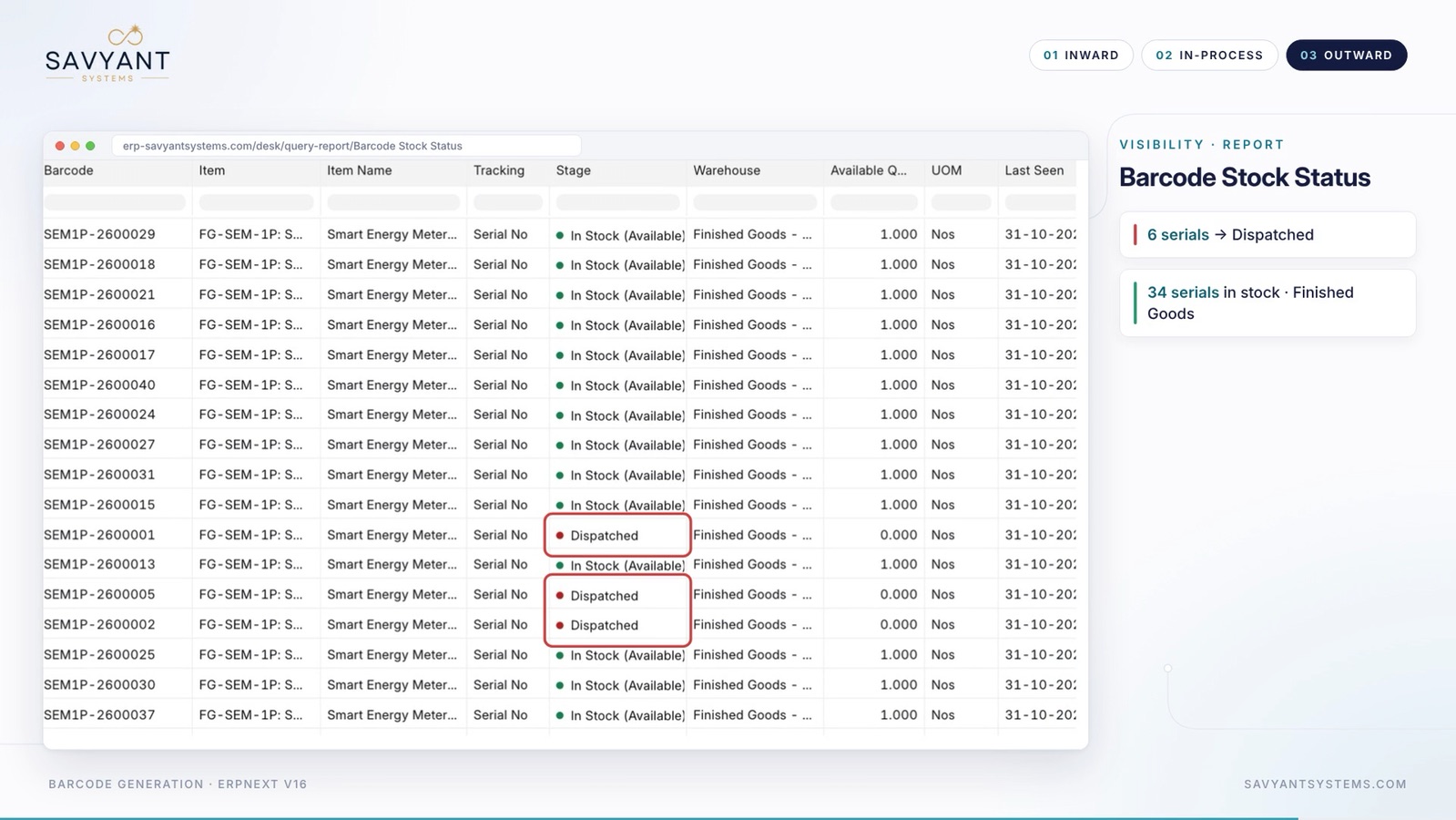
  5. Check where every unit is in the Barcode Stock Status report

In the demo, 6 units were scanned out, and the Stock Status report showed 6 serials Dispatched and 34 in stock.

ERPNext message: Dispatch scanning is enforced. Rows have no scanned barcode
Dispatch control: a Delivery Note row without a scan is blocked.

Comparison

Without the app and with it

Without the appWith the Savyant app
LabelsWritten by hand or kept in spreadsheetsGenerated from the Purchase Receipt or Stock Entry, one per batch, serial number or piece
ScanningTyped or matched by hand against document rowsCamera or hardware scan that resolves to item, batch, quantity and warehouse
Wrong or repeated scansFound later, if at allRejected at the scan, such as a repeated serial or a lot the Work Order does not need
DispatchA row can be added without checking the unitEnforce Dispatch Scan blocks any Delivery Note row without a scan
TraceabilityRebuilt from paperworkTracking log, Genealogy Link and the Barcode Stock Status report

See it on your own items and labels

A short call, then a demo on your data. No commitment.

Label design

One self-describing label payload

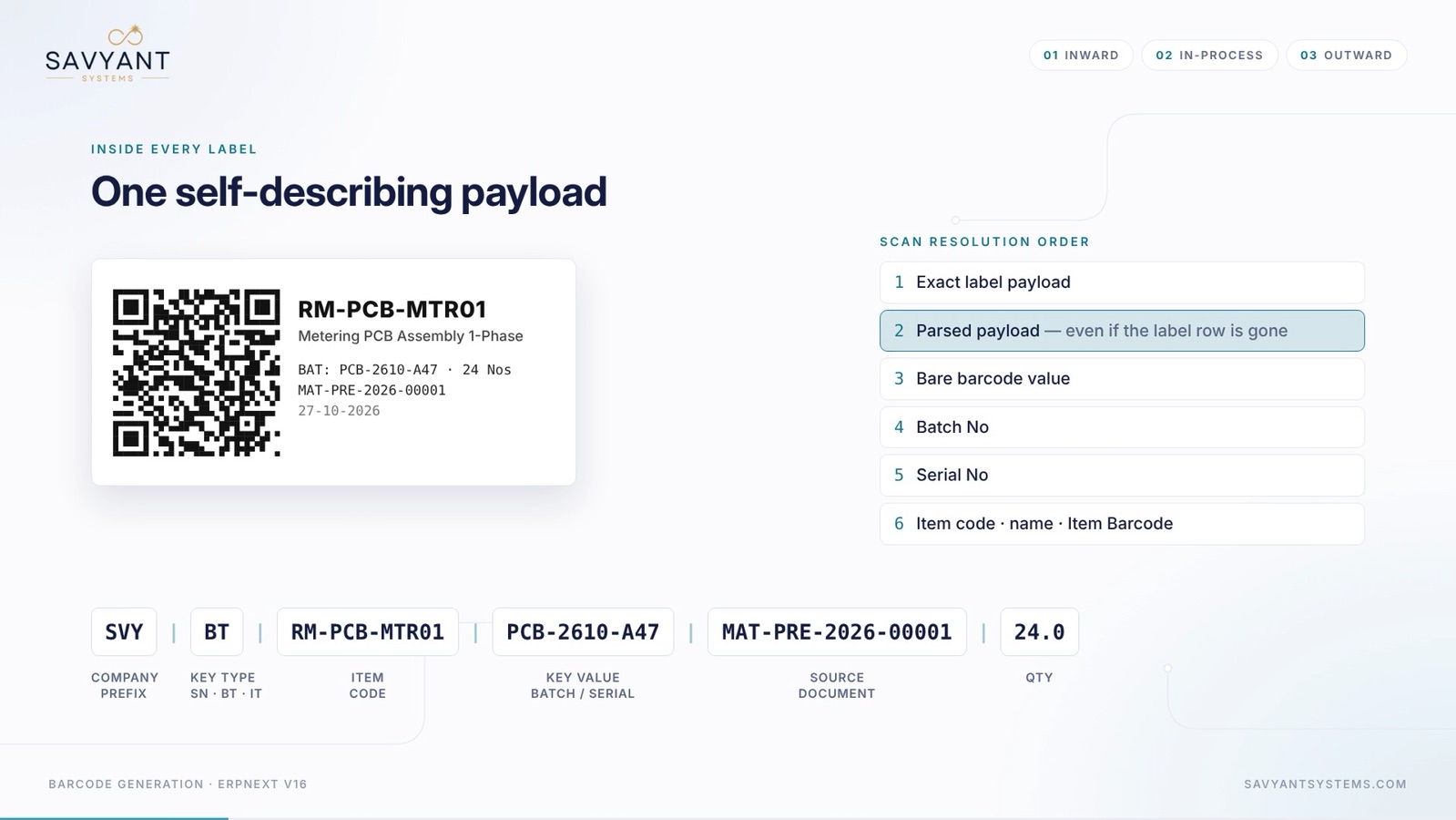
Every label carries the same structure, so any scanner or camera can read it and the app can work out what it is without a lookup.

  • SVYCompany prefix
  • BTKey type: SN, BT or IT
  • RM-PCB-MTR01Item code
  • PCB-2610-A47Key value: batch or serial
  • MAT-PRE-2026-00001Source document
  • 24.0Quantity

SVY|BT|RM-PCB-MTR01|PCB-2610-A47|MAT-PRE-2026-00001|24.0

Barcode label payload broken into company prefix, key type, item code, batch or serial, source document and quantity, with the six-step scan resolution order
The label payload and the order in which a scan is resolved.

How a scan is resolved

The app tries the following matches in order, so a scan still works when the label row has been deleted.

  1. Exact label payload
  2. Parsed payload, even if the label row is gone
  3. Bare barcode value
  4. Batch No
  5. Serial No
  6. Item code, item name or Item Barcode

Barcode types

Two symbologies, three ways to key a label

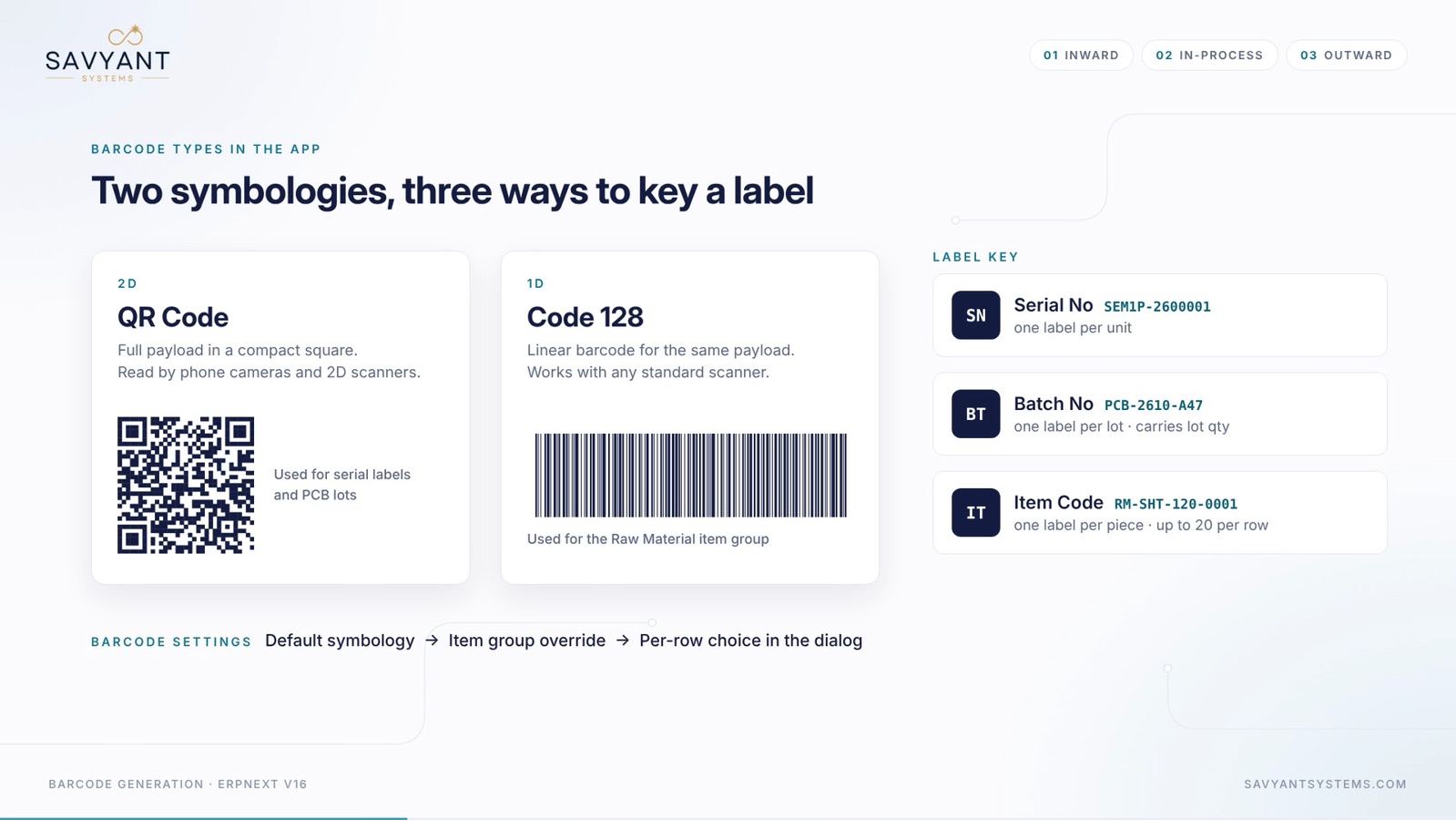
  • QR code (2D)The full payload in a compact square. Read by phone cameras and 2D scanners. Used for serial labels and PCB lots in the demo.
  • Code 128 (1D)A linear barcode for the same payload. Works with any standard scanner. Used for the Raw Material item group in the demo.
  • Serial NoOne label per unit
  • Batch NoOne label per lot, carrying the lot quantity
  • Item CodeOne label per piece, up to 20 per row

The symbology is chosen in three steps: the default in Barcode Settings, an override per item group, and a per-row choice in the dialog.

QR code and Code 128 barcode side by side with the label key options Serial No, Batch No and Item Code
QR and Code 128, and the three label keys.

Control and visibility

Controls and audit trail

  • Enforce Dispatch ScanSwitch it on in Barcode Settings and no Delivery Note row can be saved without a scanned barcode.
  • Duplicate and over-quantity checksA serial scanned twice is blocked, and so is a lot the Work Order does not need.
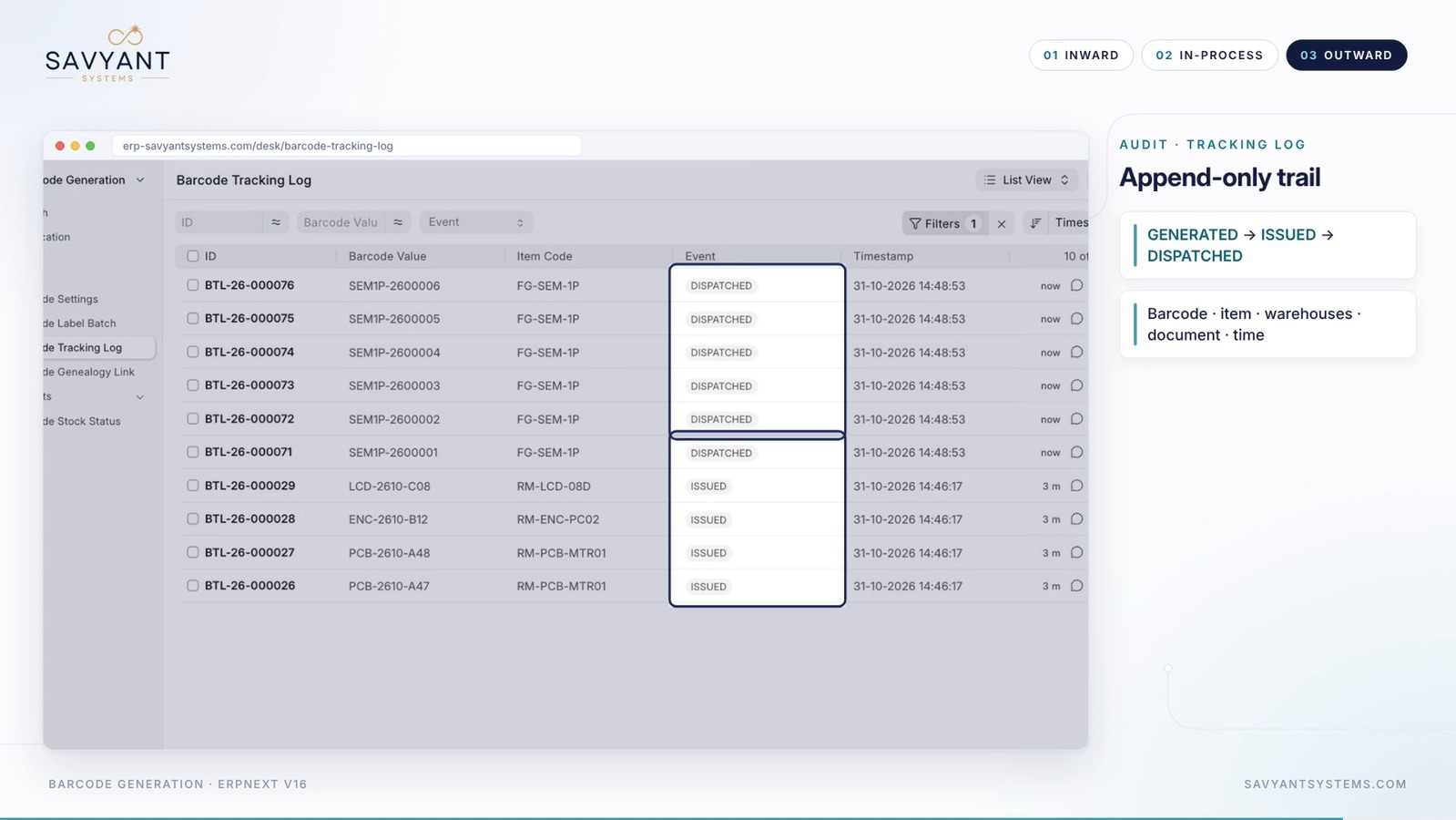
  • Barcode Tracking LogAn append-only trail of every label event (Generated, Issued, Dispatched) with the barcode, item, warehouses, document and time.
  • Genealogy LinkLinks a finished good back to the raw materials that were consumed to make it.
  • Barcode Stock Status reportShows the stage and warehouse of every labelled unit, such as In Stock or Dispatched.
Barcode Tracking Log list in ERPNext showing Issued and Dispatched events with timestamps
Barcode Tracking Log: every event is kept.
Barcode Stock Status report in ERPNext showing serial numbers as In Stock or Dispatched
Barcode Stock Status: where each unit is now.

Result

What the demo shows

  • 24Inward labels4 batch labels and 20 unit labels from one Purchase Receipt
  • 40Serial labelsFinished goods from one Manufacture entry
  • 6Units dispatchedScanned out on one Delivery Note

Figures from the sample data in the walkthrough video.

Who it is for

When you need it

  • Manufacturers who track batches and serial numbers
  • Distributors who must show where stock went
  • Stores teams who scan every receipt and dispatch
  • Quality teams who trace a finished unit back to its materials

What goes wrong today

The problems it removes

  • Labels are written by hand or kept in spreadsheets
  • Scans do not match the right batch or document row
  • Nobody can say where a labelled unit is right now
  • Dispatch mistakes are found by the customer

Implementation

How Savyant sets it up

  1. MapHow you receive, make and dispatch stock today, and which items are tracked by batch or serial.
  2. ConfigureBarcode Settings: default symbology, item group overrides, labels per row and Enforce Dispatch Scan.
  3. PilotScan real receipts and a real Work Order with your scanners and label printers.
  4. Train and go liveRole-based training for stores, production and dispatch, then support.

The full delivery method →

Questions

ERPNext barcode app: common questions

  • Can ERPNext generate barcodes for batches and serial numbers?

    Yes, with the Savyant Barcode Generation app. It adds a Generate Barcodes action to the Purchase Receipt and to Stock Entries, and creates one label per batch, per serial number or per item piece.

  • Should we use QR codes or Code 128?

    Both are supported. QR codes hold the full payload in a small square and are read by phone cameras and 2D scanners. Code 128 is a linear barcode that any standard scanner reads. You choose a default, override it per item group and change it per row.

  • Does it work with camera and hardware scanners?

    Yes. Camera Scan and Continuous Scan work in ERPNext's own scan fields, and hardware scanners type into the same fields.

  • Can we stop a dispatch that was not scanned?

    Yes. Switch on Enforce Dispatch Scan in Barcode Settings and a Delivery Note row without a scanned barcode cannot be saved.

  • How do we trace a unit back to its materials?

    The app keeps a Genealogy Link from each finished good to the raw materials consumed, and an append-only Barcode Tracking Log of every label event.

  • Which ERPNext version is it built for?

    ERPNext v16.

Ready to talk to an ERPNext consultant?

Tell us about your setup and we will reply within one working day.

Who builds it

About Savyant Systems

Savyant Systems is an ERPNext and Frappe implementation company based in India. We implement, customise, integrate and support ERPNext for manufacturers, traders and growing businesses in India, the UK, Europe, the USA and Canada, and we build our own apps on top of it, including this one.

  • ERPNext Certified
  • Claude Certified
  • India · Global delivery

What happens next

  1. We review your enquiry and which setup applies
  2. A 45-minute discovery call on your processes and systems
  3. A scope, plan and demo on your own data

Next step

Talk to us

Want to see it on your own items and labels? Tell us how you receive, make and dispatch stock, and we will set up a demo on your data.