Savyant Systems ERPNext company

ERPNext v16 · GST compliance · Invay app

e-Invoice and e-Way Bill, straight from ERPNext

Register IRNs and generate e-Way Bills from your sales documents, with no retyping on the government portal. Invay is free: no credits, no per-document charge and no recurring fees.

In short

The Savyant Invay app generates e-Invoices (an IRN with a signed QR code) and e-Way Bills straight from ERPNext v16 sales documents. It validates the data before it calls the government portal, supports bulk generation for up to 2,000 documents, has an offline JSON mode, handles extending and cancelling e-Way Bills, and keeps a hash-chained audit trail and a full request log. Invay is free, with no credits, no per-document charge and no recurring fees. It is built and supported by Savyant Systems, an ERPNext implementation company.

Updated 7 November 2026 by Savyant Systems
e-Invoice and e-Way Bill straight from ERPNext: Savyant Invay app
  • Built forERPNext v16, India GST
  • GeneratesIRN, acknowledgement number, signed QR code and e-Way Bill
  • ConnectionNIC Direct API, starting in sandbox, with the portal password encrypted
  • DocumentsSales Invoice, Delivery Note and Purchase Invoice
  • BulkUp to 2,000 documents in one action, 50 at a time in the background
  • No API access?Download the e-Invoice JSON, upload it on the government utility and import the response
  • AuditA hash-chained ledger, a full Request Log and a Compliance Register
  • PriceFree: no credits, no per-document charge and no recurring fees

Video chapters

Jump to any part of the walkthrough

The challenge

GST compliance, still a second job

  • Invoice in ERPNextSubmitted and printed.
  • Typed againOn the government portal.
  • Copied back by handThe IRN, Ack No. and QR code.

The result is typing errors and rejections, an IRN missing on the print, an e-Way Bill that expires on the road, and no history for the auditor.

How it works

One simple flow, ledger first

  1. Submit invoiceA Sales Invoice, Delivery Note or Purchase Invoice.
  2. Build payloadValidated against the schema.
  3. Call the portalThe IRP and the e-Way Bill API.
  4. Ledger firstThe response is saved as evidence.
  5. Back on invoiceThe IRN, QR code and e-Way Bill.

The portal's response is written to the ledger first, and only then copied onto your invoice.

How it works

The process flow: set up, register, move, prove

Invay has five steps. You set it up once, register invoices, cover goods on the road, work in bulk or offline, and keep an audit trail of everything.

STAGE 01

Set up

Invay Settings

  1. Enable e-Invoice and e-Way Bill in Invay Settings
  2. Choose the integration mode: NIC Direct API, starting in sandbox
  3. Add one row per GSTIN with the portal username and password. The password is encrypted
  4. Map your tax accounts, CGST, SGST and IGST, so tax can be split line by line
  5. Set the date from which e-Invoice applies and the e-Way Bill value threshold
  6. Choose the automation: generate the e-Way Bill with the IRN, attach the signed QR image, sync status daily and block cancellation past the portal window

In the demo, Invay was set up in a few minutes with one GSTIN, a sandbox connection and CGST, SGST and IGST mapped.
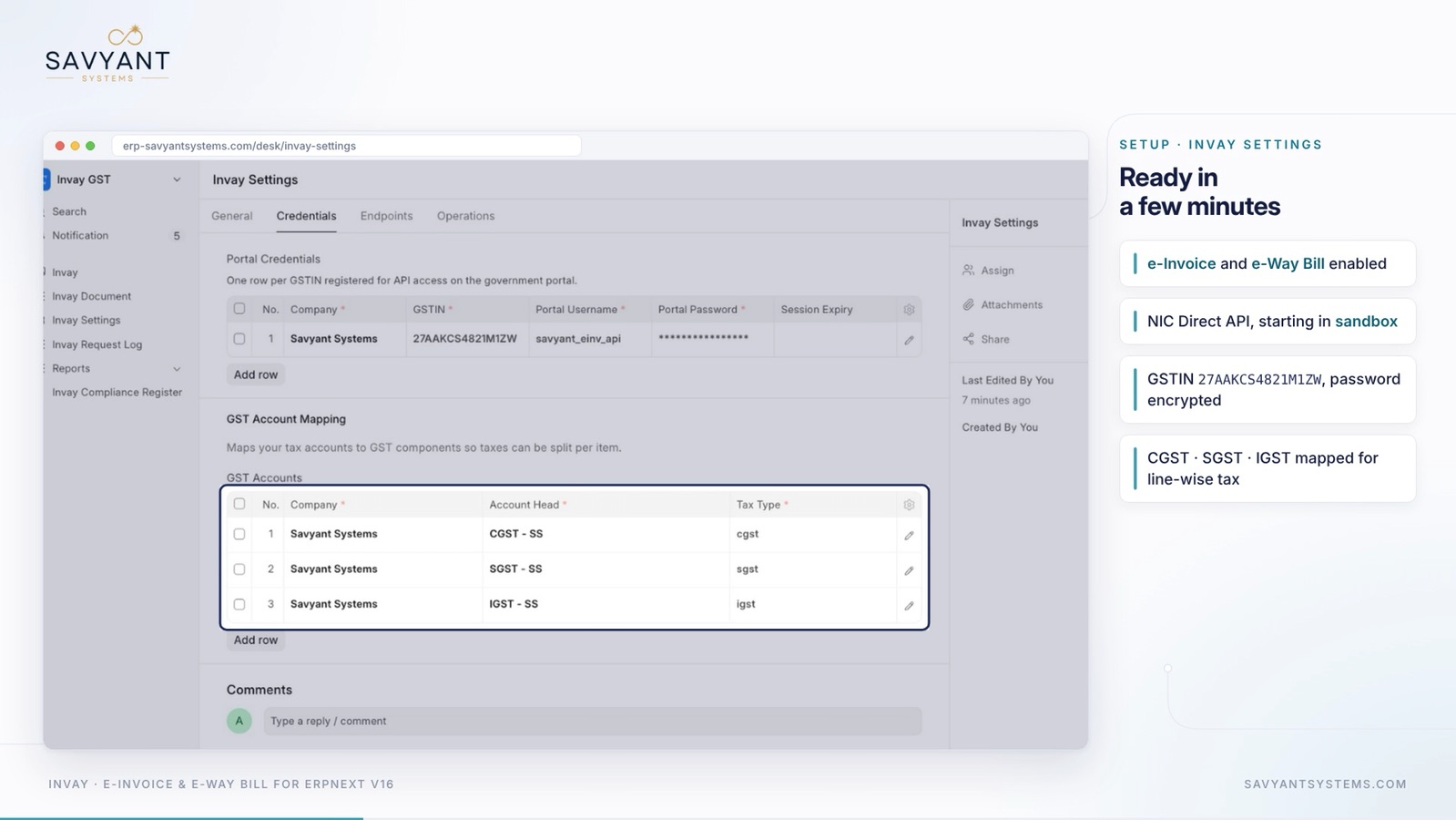
Invay Settings in ERPNext showing GSTIN credentials and the CGST, SGST and IGST account mapping
Invay Settings: services, credentials and tax accounts.

STAGE 02

Register

Sales Invoice

  1. Submit the Sales Invoice as usual
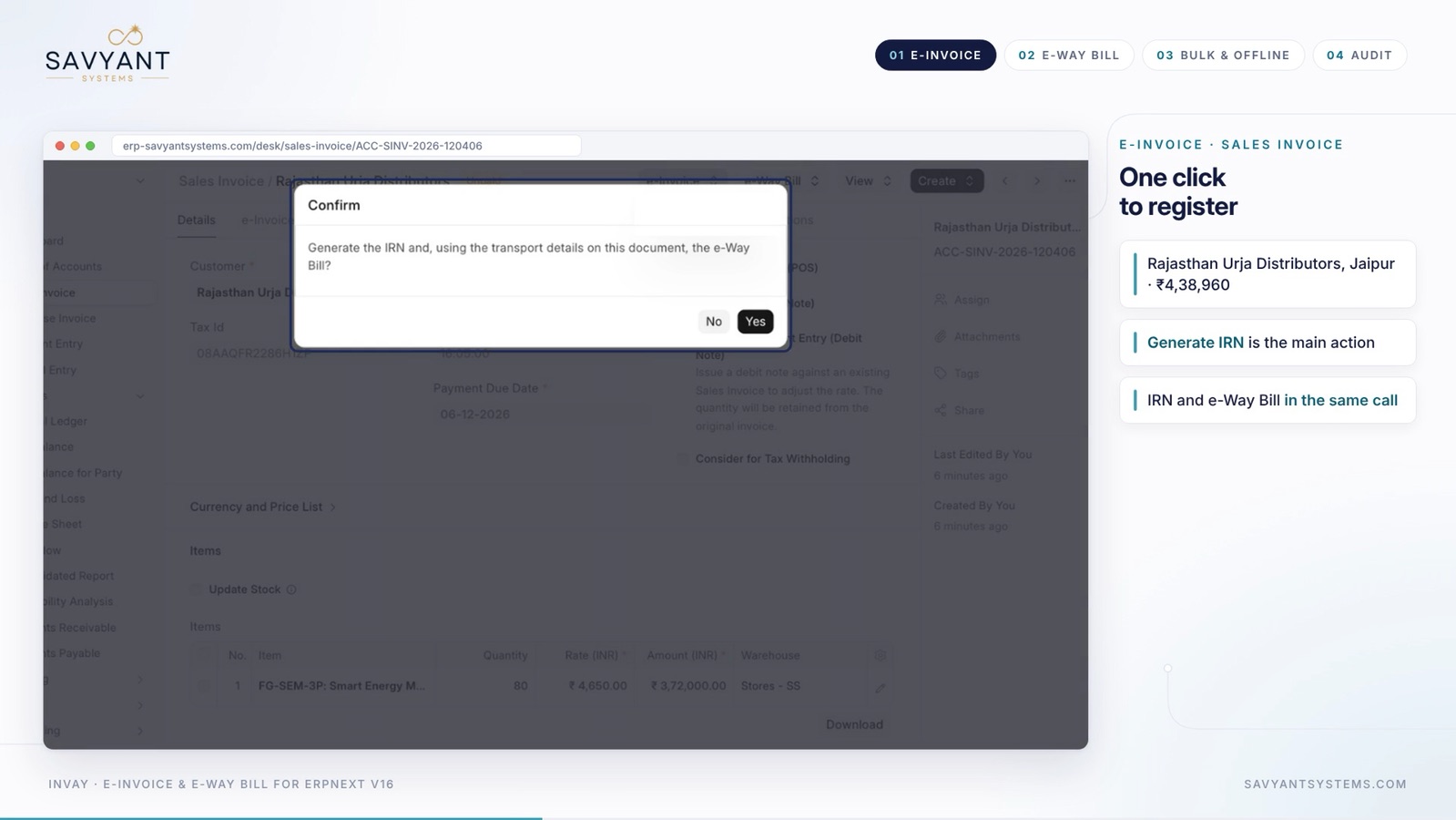
  2. Click e-Invoice, then Generate IRN. A confirmation asks to generate the e-Way Bill from the transport details at the same time
  3. Invay checks the data first: GSTIN checksum, PIN code against state, HSN code and tax split per item
  4. The payload is built to the INV-01 schema and sent to the Invoice Registration Portal
  5. The IRN, acknowledgement number and date, and the signed QR code are stored on the invoice
  6. The signed QR is kept for the print format

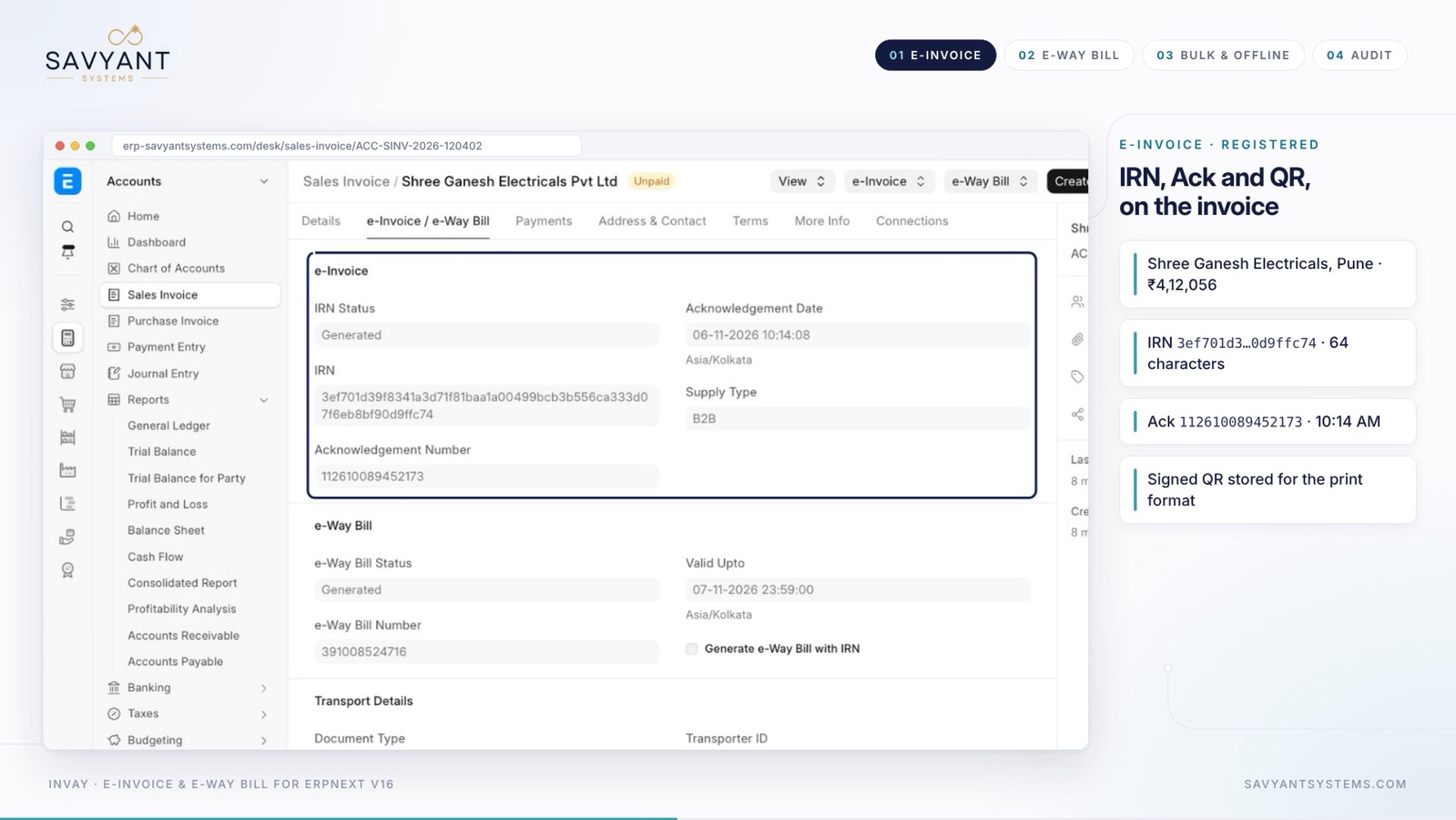
In the demo, a B2B invoice of ₹4,12,056 for Shree Ganesh Electricals, Pune was registered and showed its IRN, acknowledgement number and QR code.

Generate IRN confirmation on a Sales Invoice in ERPNext, with an option to generate the e-Way Bill in the same call
One click to register: IRN and e-Way Bill in the same call.

STAGE 03

Move

e-Way Bill

  1. An e-Way Bill is needed when the invoice value is above the threshold, ₹50,000 in the demo, which you set in Invay Settings
  2. Generate it with the IRN in one step, or fill the Part-A invoice details and Part-B vehicle details
  3. Validity is worked out for you: one day per 200 km
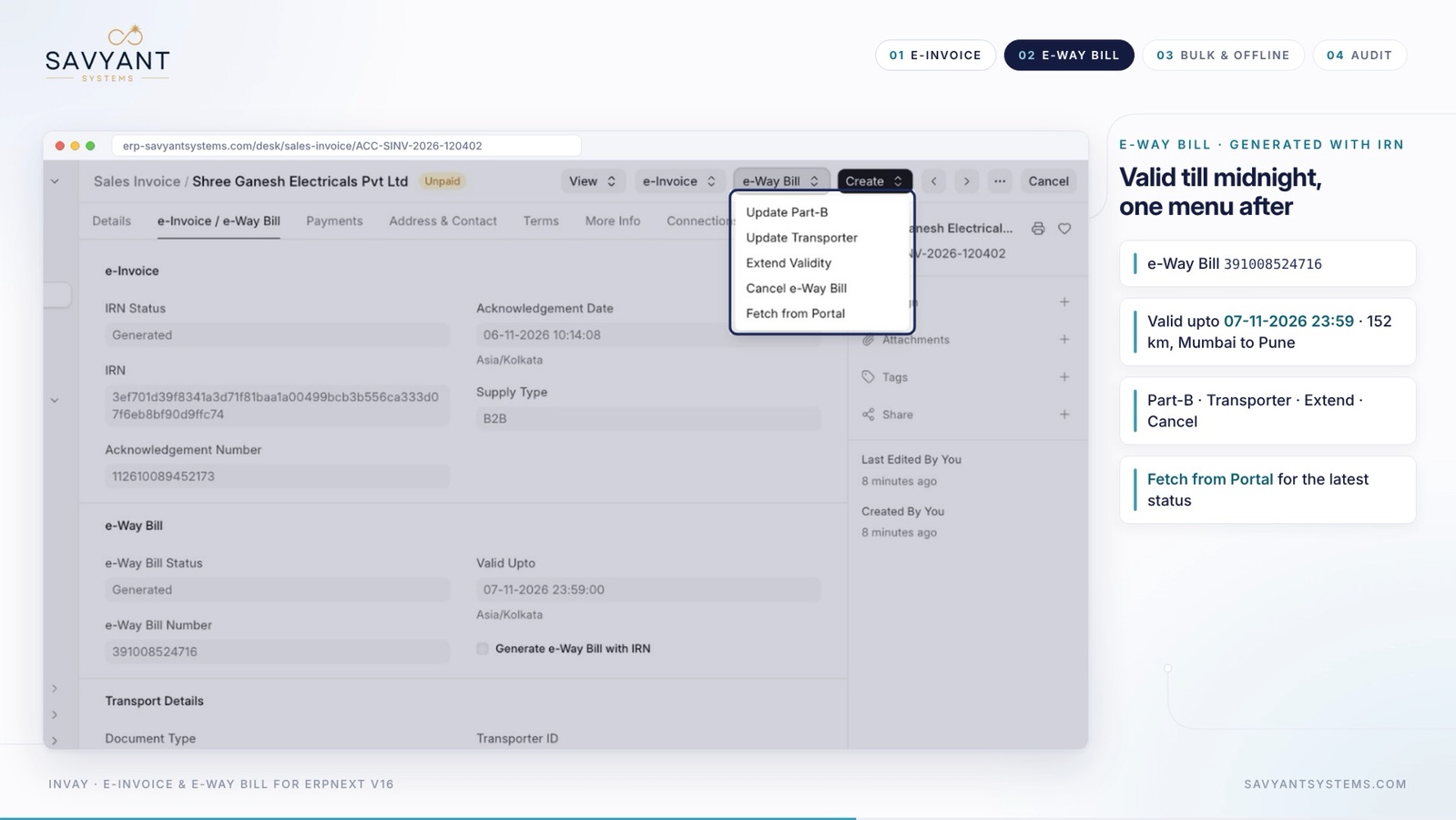
  4. Use the e-Way Bill menu to Update Part-B, Update Transporter, Extend Validity, Cancel e-Way Bill or Fetch from Portal
  5. Extend validity with a reason, for example an accident, with the remaining distance and the current place
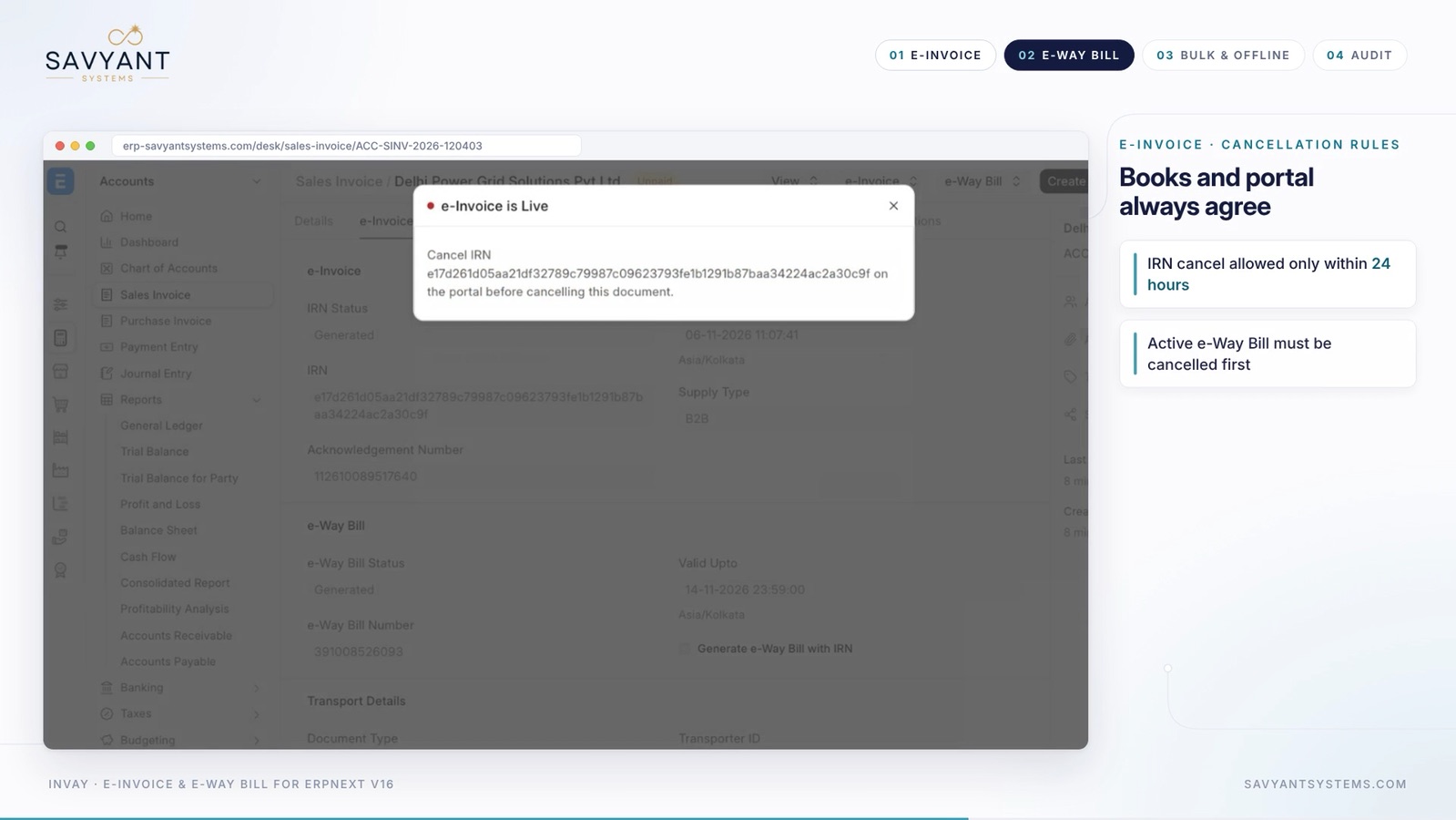
  6. Cancel in the right order: an IRN can be cancelled only within 24 hours, and an active e-Way Bill must be cancelled first

In the demo, e-Way Bill 3910 0852 4716 was valid until midnight for a 152 km trip from Mumbai to Pune.

e-Way Bill menu on a Sales Invoice in ERPNext with Update Part-B, Update Transporter, Extend Validity, Cancel and Fetch from Portal
One menu for the whole life of an e-Way Bill.

STAGE 04

Bulk and offline

Sales Invoice list

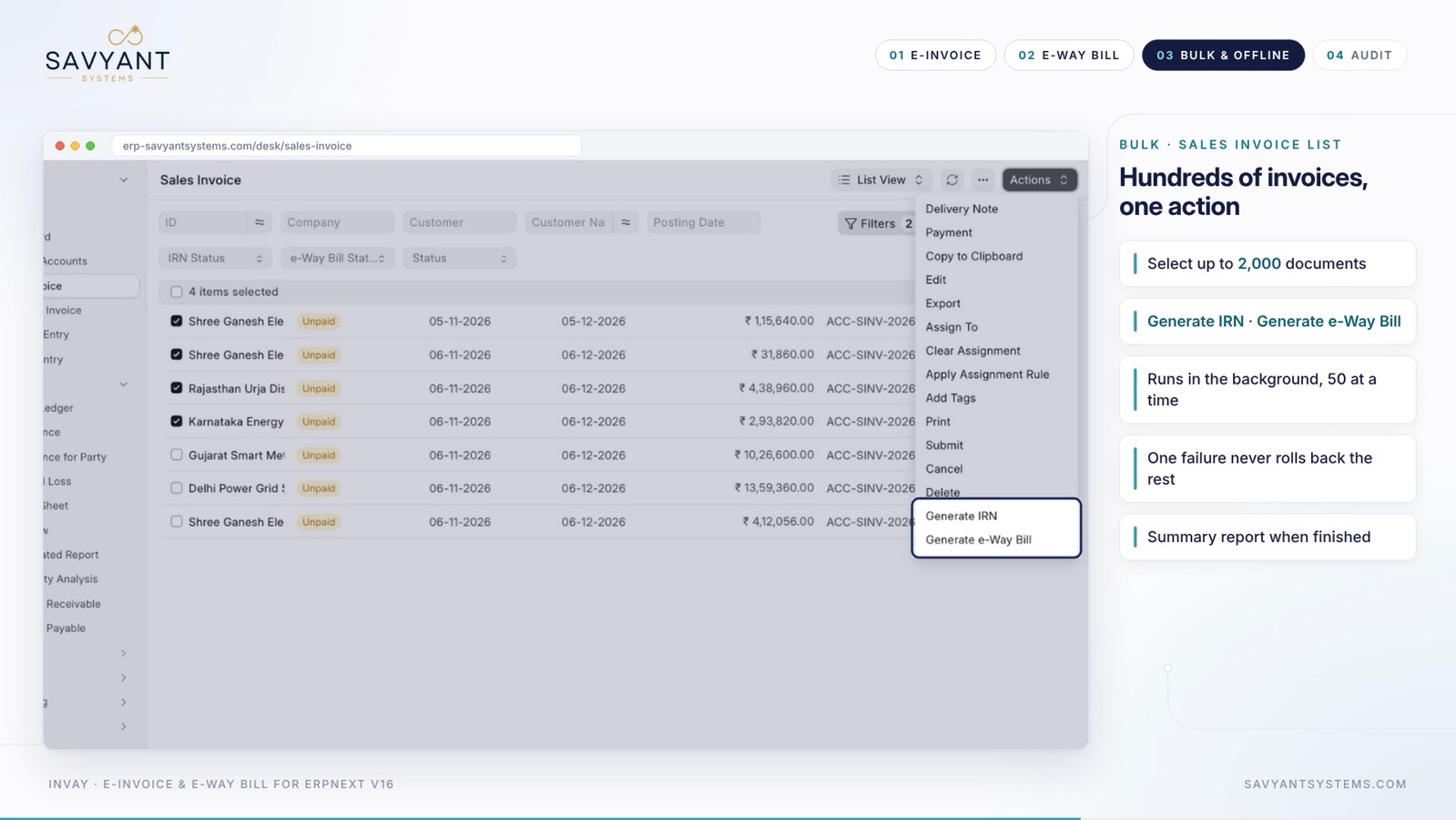
  1. Select up to 2,000 documents in the Sales Invoice list
  2. Choose Actions, then Generate IRN or Generate e-Way Bill
  3. The job runs in the background, 50 documents at a time
  4. One failure never rolls back the rest
  5. A summary report is shown when the job finishes
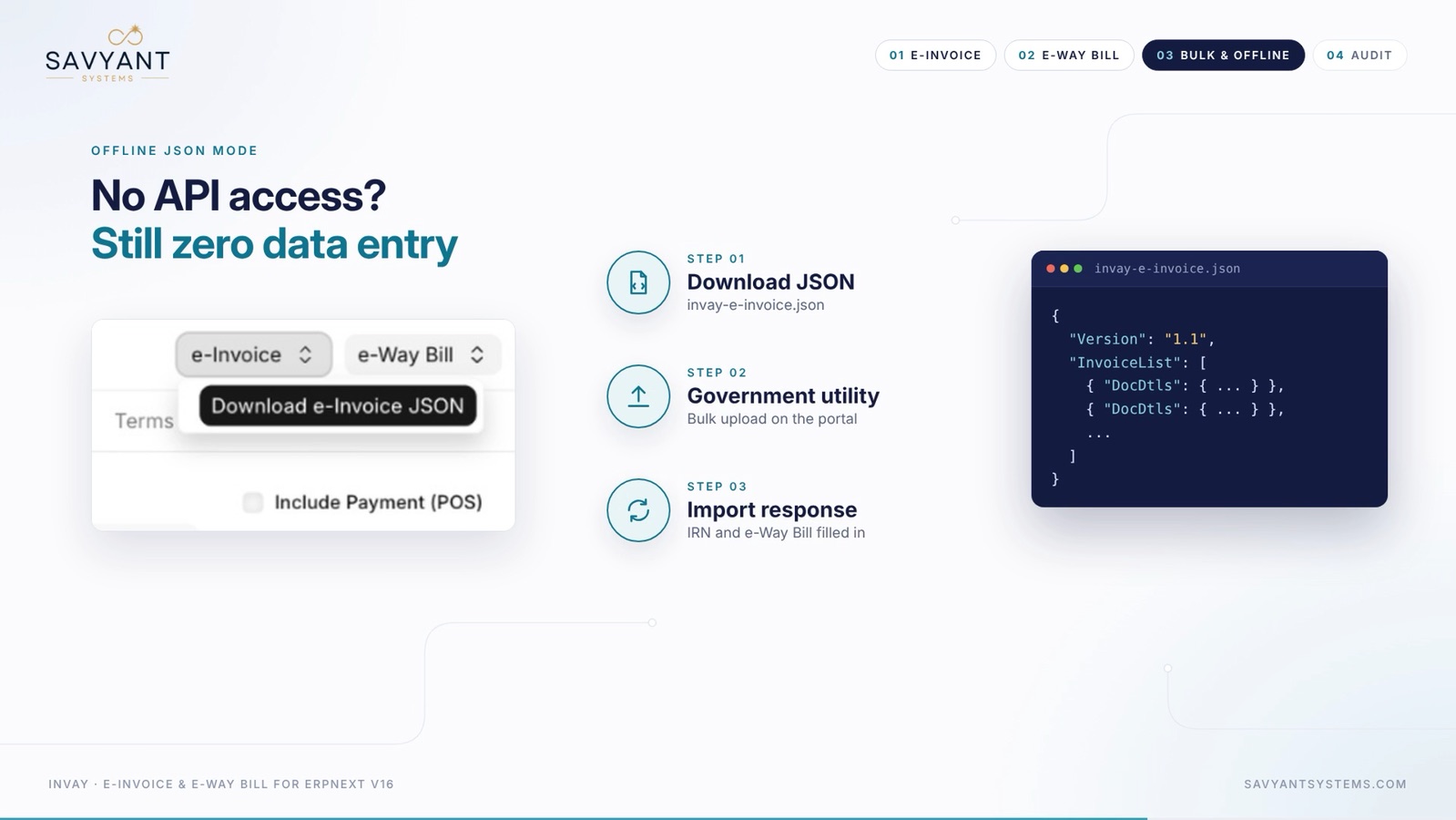
  6. No API access? Download the e-Invoice JSON, upload it on the government utility, then import the response to fill the IRN and e-Way Bill

In the demo, four invoices were selected and sent in one action.

Sales Invoice list in ERPNext with four invoices selected and the Generate IRN and Generate e-Way Bill actions
Hundreds of invoices, one action.

STAGE 05

Prove

Invay Document and Request Log

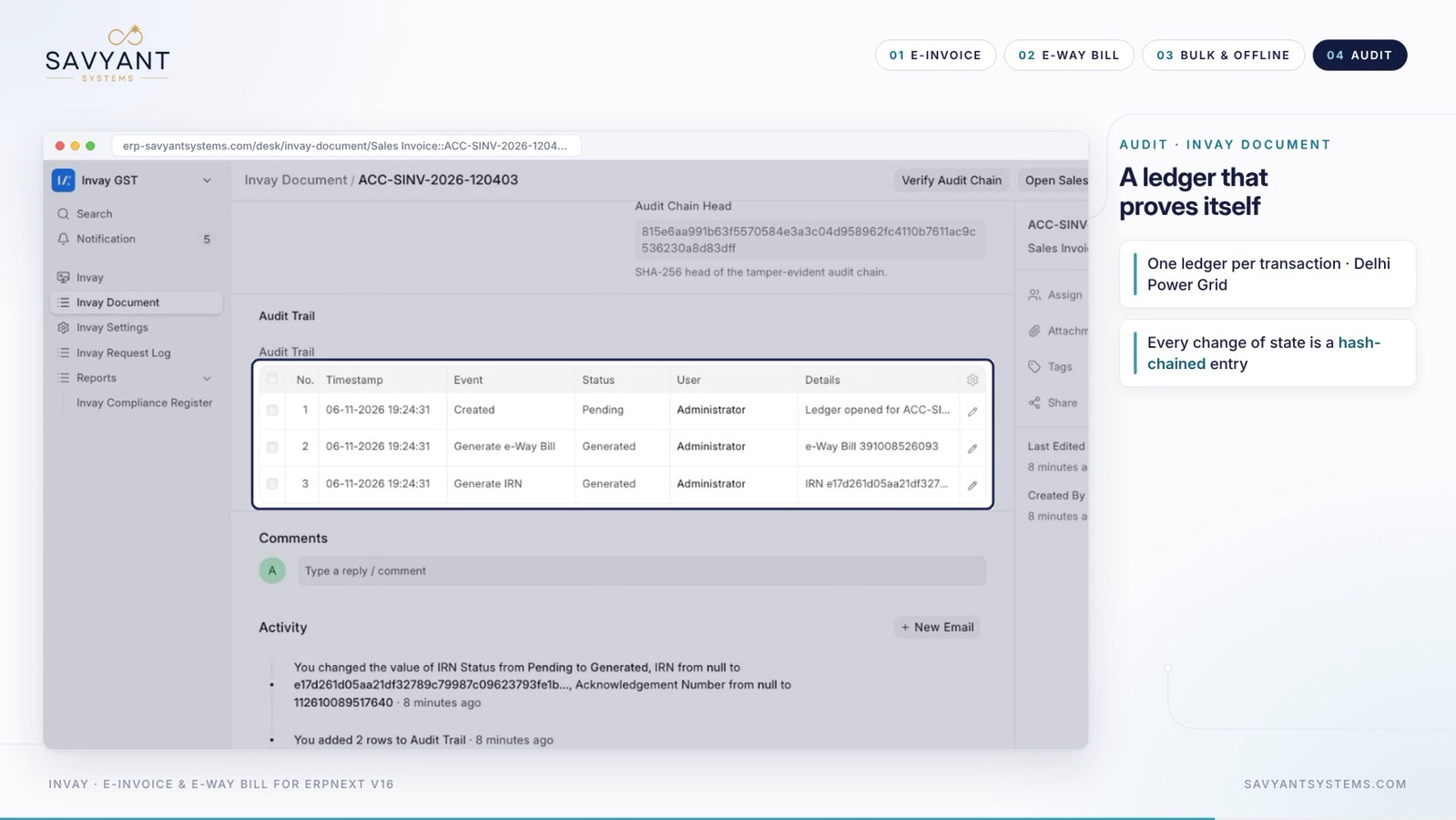
  1. Every document has an audit trail with one ledger entry per transaction
  2. Each change of state is a hash-chained entry
  3. Verify Audit Chain shows whether the history is intact
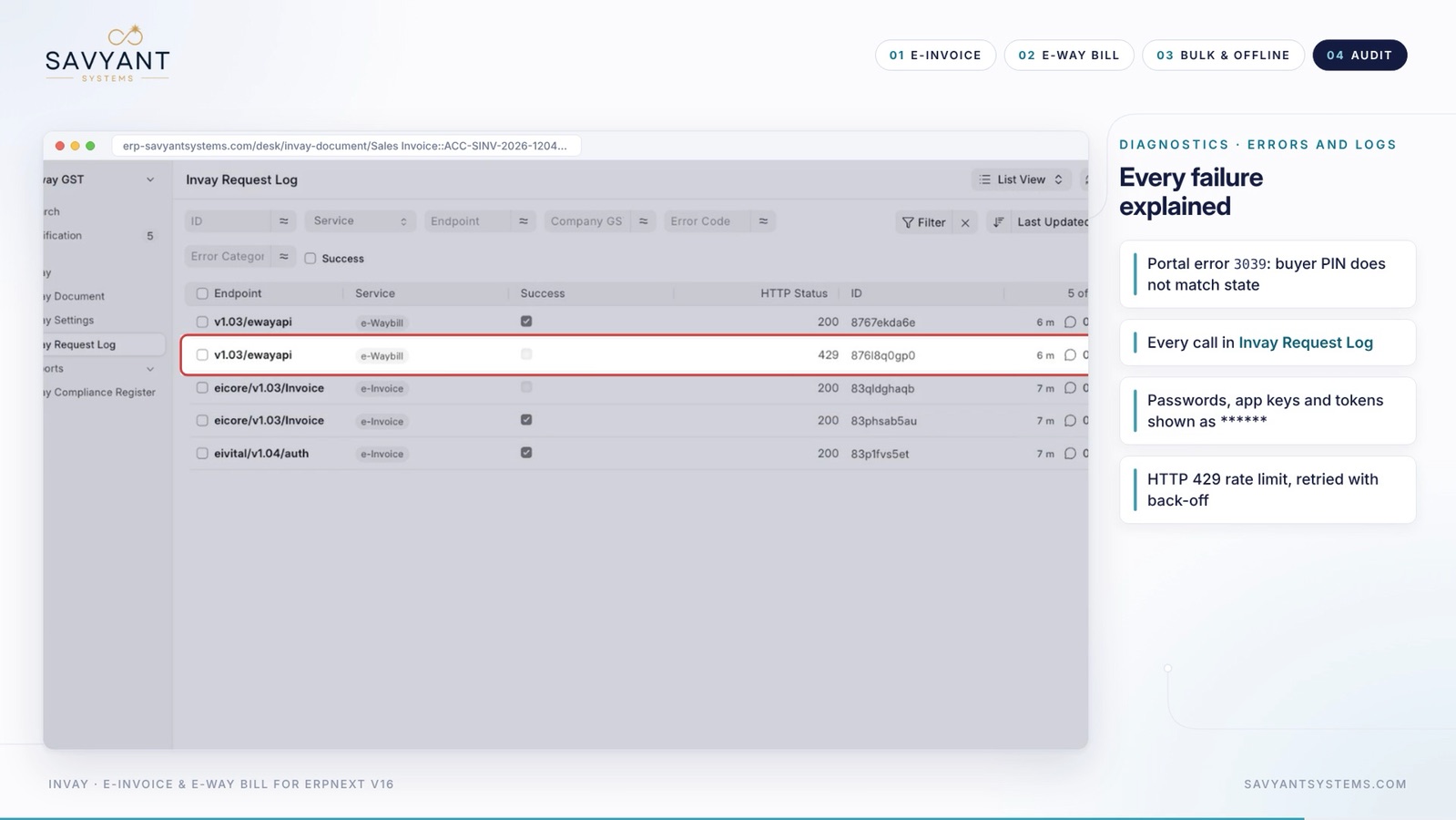
  4. Every call to the portal is saved in the Invay Request Log, with passwords, app keys and tokens shown as ******
  5. A portal error is shown in plain words, for example error 3039: buyer PIN does not match state
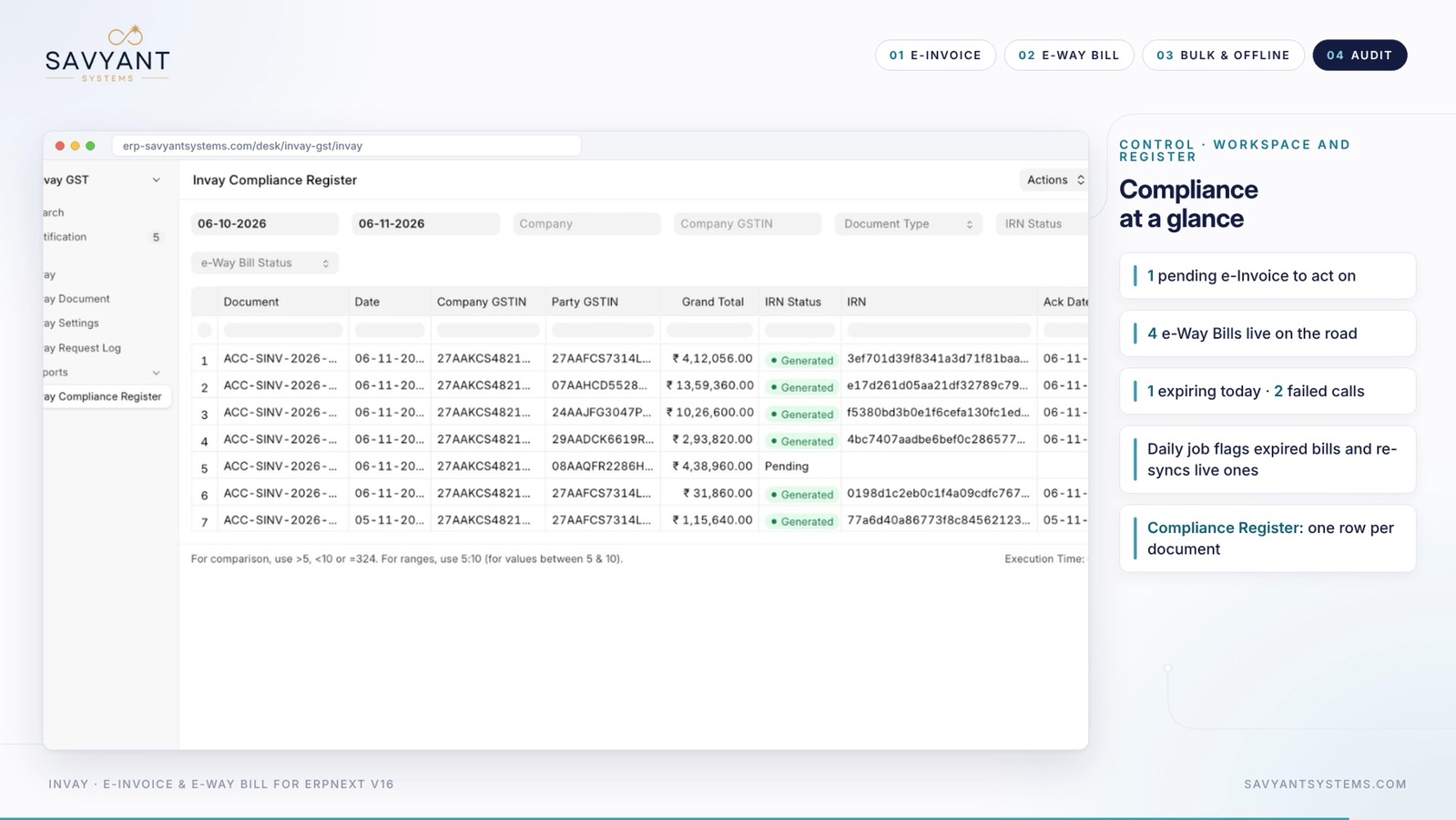
  6. The Compliance Register lists one row per document

In the demo, Verify Audit Chain confirmed that all 3 entries of a document were intact.

Invay Document in ERPNext showing a hash-chained audit trail with state changes for an invoice
A ledger that proves itself.

Comparison

Manual portal work and with Invay

Without the appWith the Savyant Invay app
Getting an IRNType the invoice again on the government portal and copy the IRN back by handOne click on the invoice. Invay calls the portal and stores the IRN, Ack No. and signed QR
Data errorsTyping errors and rejectionsGSTIN, PIN code, HSN and tax split are checked before the call, so bad data fails fast
e-Way BillMade on a separate portal, and it can expire on the roadGenerated with the IRN, with Part-B, extend and cancel from one menu, and a daily job flags expiring bills
Many invoicesOne at a timeUp to 2,000 documents in one action, 50 at a time in the background
No API accessManual data entryDownload the JSON, upload it with the government utility, import the response
AuditNo history for the auditorA hash-chained ledger, a full Request Log and a Compliance Register

See it on your own invoices

A short call, then a demo on your data. No commitment.

e-Invoicing under GST

No IRN, no valid invoice

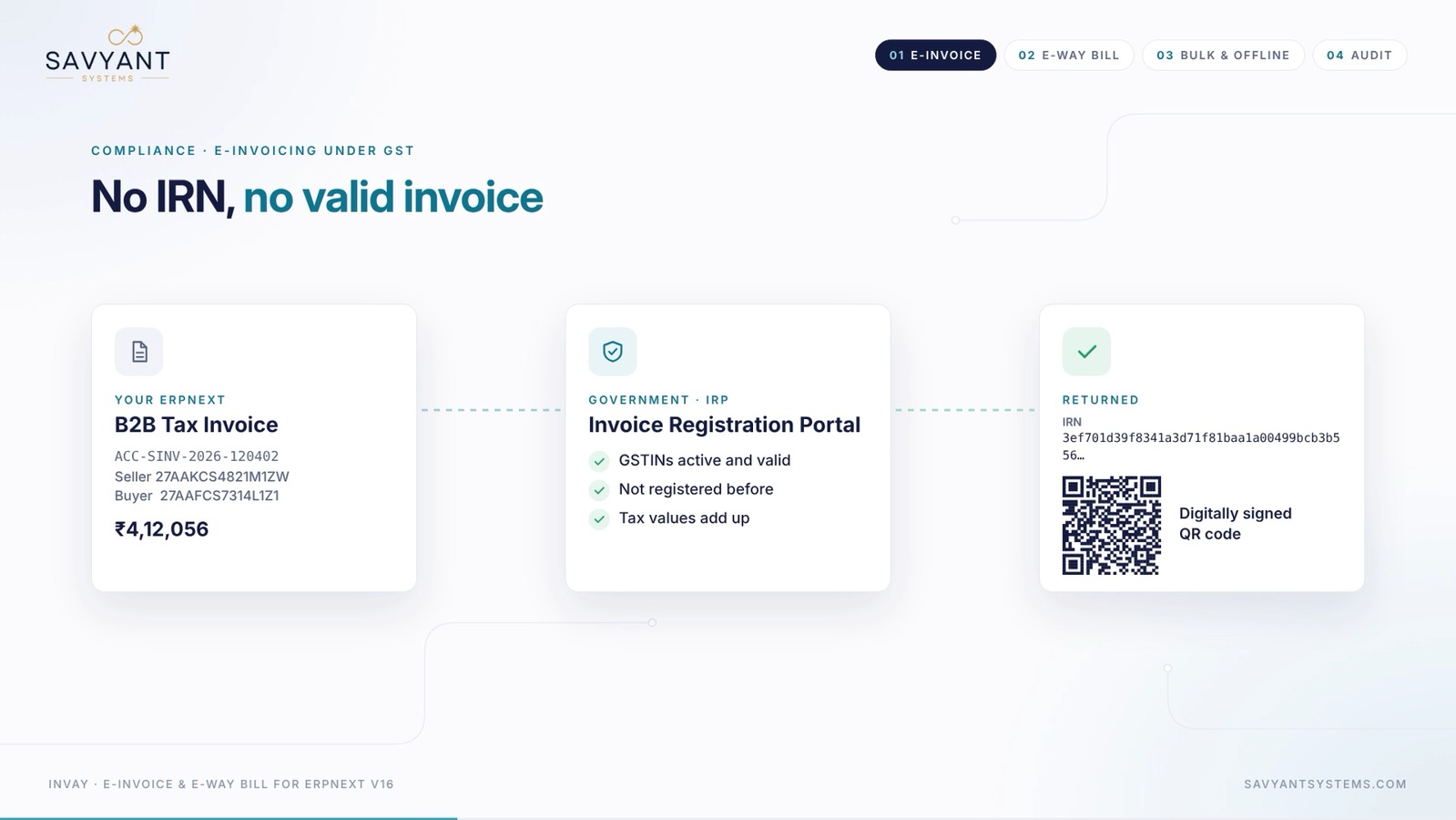
A B2B invoice goes to the Invoice Registration Portal, which checks it and returns the IRN with a digitally signed QR code.

  • Your invoiceA B2B tax invoice from ERPNext, with the seller and buyer GSTIN.
  • The portal checks itGSTINs are active and valid, the invoice was not registered before and the tax values add up.
  • What comes backThe IRN, the acknowledgement details and a digitally signed QR code.
An invoice sent from ERPNext to the Invoice Registration Portal, which returns an IRN and a digitally signed QR code
The route of an e-Invoice, from ERPNext to the portal and back.

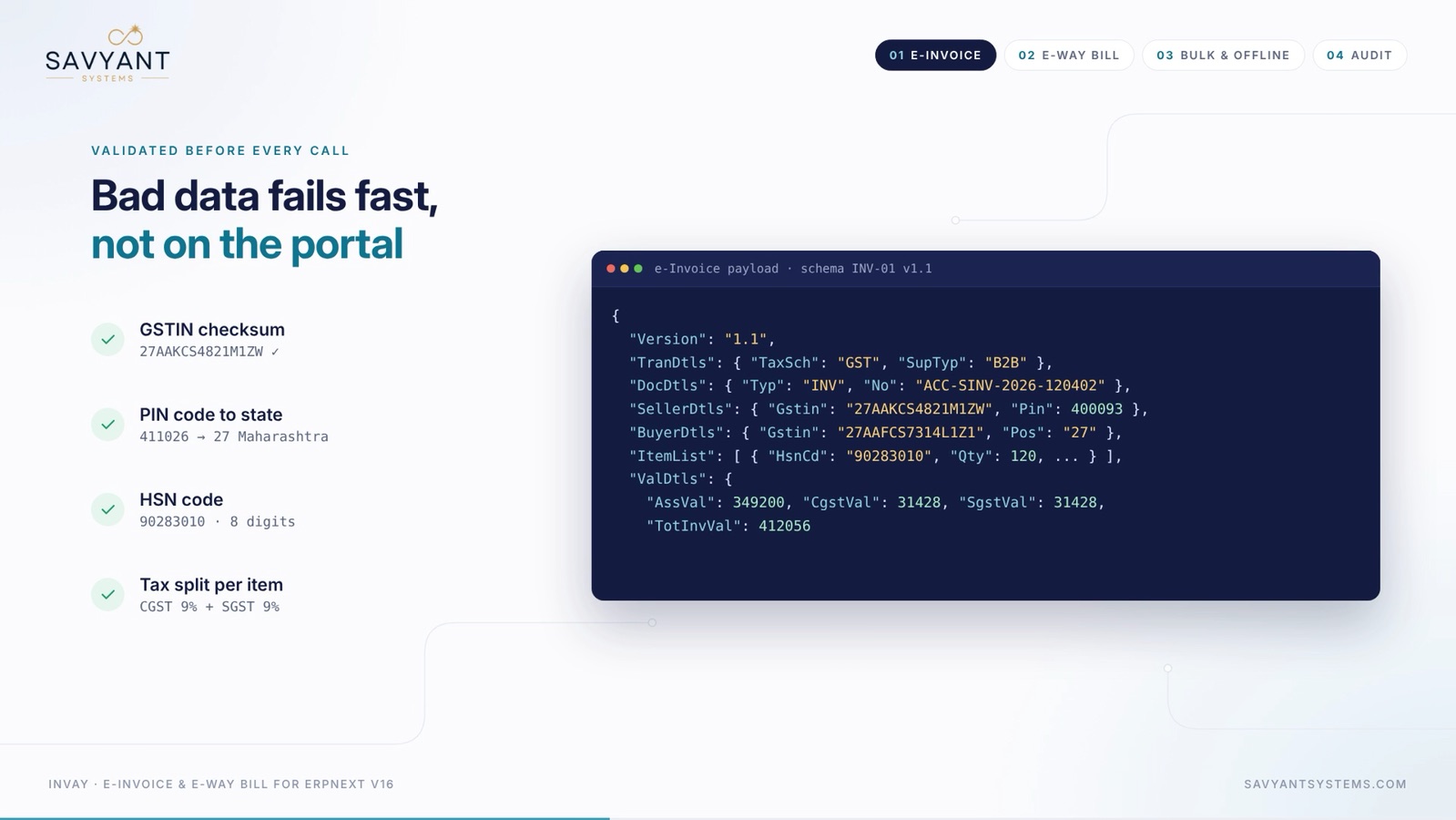
Validated before every call

Bad data fails fast, not on the portal

Invay checks the invoice before it calls the portal, so a mistake is caught in ERPNext, with a clear message.

  • GSTIN checksumThe seller and buyer GSTIN are checked.
  • PIN code to stateThe PIN code must match the state.
  • HSN codeChecked for the right number of digits.
  • Tax split per itemCGST and SGST, or IGST, on every line.
Invay validation checks for GSTIN checksum, PIN code to state, HSN code and tax split, next to the e-Invoice JSON payload
Checks run first, then the e-Invoice payload is built.

Registered

IRN, Ack and QR on the invoice

The result is stored on the invoice itself, so it prints with the document.

  • IRNThe 64-character Invoice Reference Number.
  • AcknowledgementThe acknowledgement number and date and time.
  • Signed QR codeStored for the print format.
A registered Sales Invoice in ERPNext showing IRN status, IRN, acknowledgement number and e-Way Bill details
The IRN, acknowledgement and e-Way Bill on the invoice.

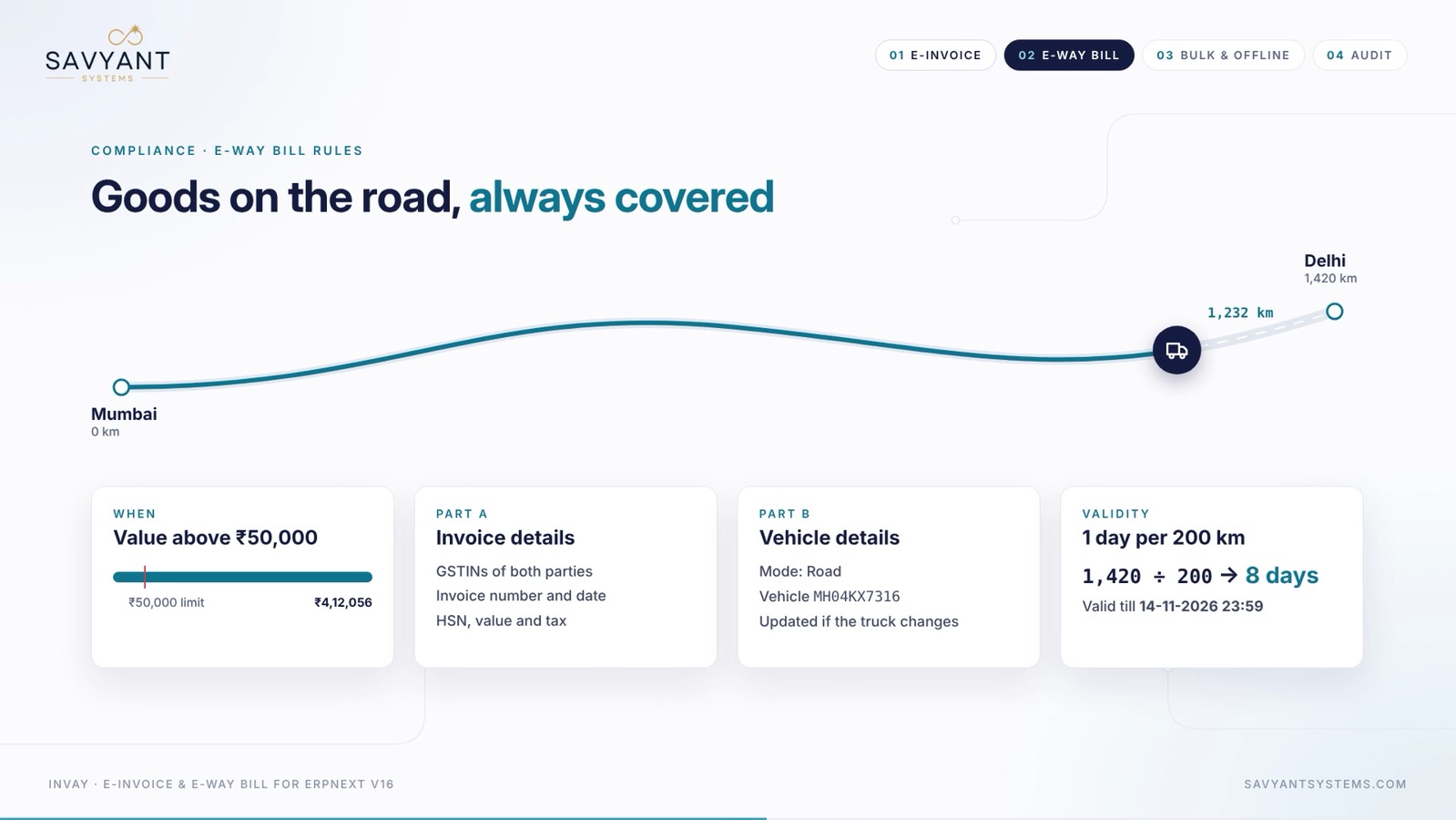
e-Way Bill rules

Goods on the road, always covered

Invay follows the e-Way Bill rules: a value threshold, Part-A, Part-B and validity by distance.

  • WhenThe invoice value is above the threshold, ₹50,000 in the demo.
  • Part A: invoice detailsThe GSTINs of both parties, the invoice number and date, HSN, value and tax.
  • Part B: vehicle detailsThe mode, the vehicle number, updated as the truck changes.
  • ValidityOne day per 200 km. For 1,428 km that is 8 days.
e-Way Bill rules showing the value threshold, Part A invoice details, Part B vehicle details and validity by distance
The e-Way Bill rules Invay applies for you.

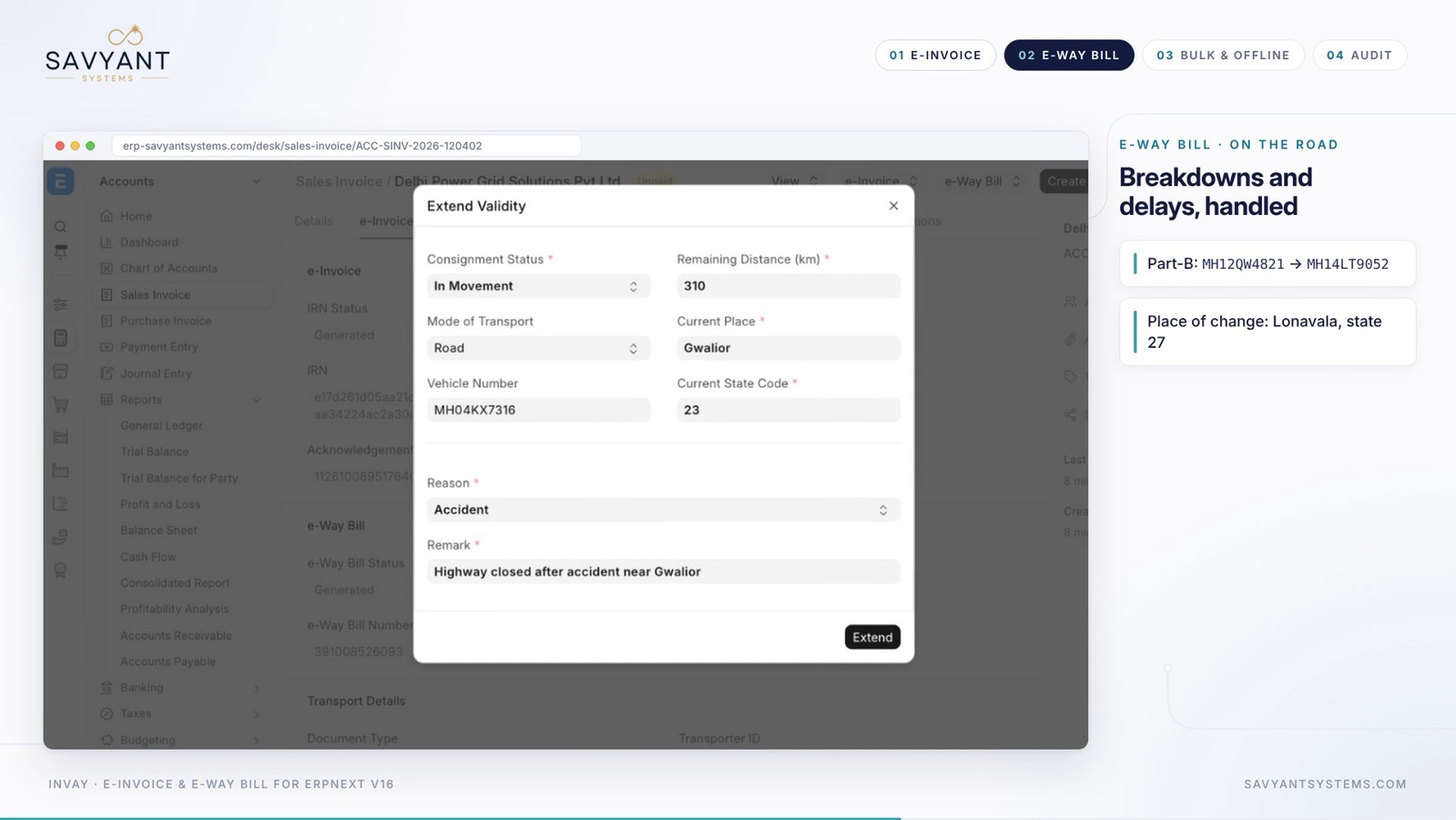
On the road

Breakdowns and delays, handled

When a truck breaks down or a vehicle changes, update the e-Way Bill from the same menu.

  1. Update Part-B when the vehicle changes
  2. Enter the place of change, for example Lonavala
  3. Extend validity with a reason, such as an accident near Gwalior, and the remaining distance

A daily job flags expired bills and syncs live ones, so none is missed.

Extend Validity dialog for an e-Way Bill in ERPNext with consignment status, remaining distance, vehicle number and reason
Extend validity with a reason, in one dialog.

Cancellation rules

Books and portal always agree

Invay follows the portal's cancellation rules, so ERPNext and the portal never disagree.

  • 24 hoursAn IRN can be cancelled only within 24 hours.
  • e-Way Bill firstAn active e-Way Bill must be cancelled before the invoice.
  • Live e-InvoiceAn e-Invoice that is Live blocks cancellation of the invoice. Cancel the IRN on the portal first.
Cancel IRN dialog in ERPNext showing the 24-hour portal rule, a reason and a remark
Cancellation checks the portal's rules.

Offline JSON mode

No API access? Still zero data entry

If you have no API access, Invay still saves the typing.

  1. Download the e-Invoice JSON from the invoice
  2. Bulk upload it with the government utility
  3. Import the response to fill the IRN and the e-Way Bill
Download e-Invoice JSON action in ERPNext, with three steps: download, government utility, import response
Offline mode: download, upload, import.

Diagnostics

Every failure explained

When the portal says no, you see why.

  • Plain-language errorsFor example, portal error 3039: buyer PIN does not match state.
  • Invay Request LogEvery call, with its endpoint, status and HTTP code.
  • Secrets hiddenPasswords, app keys and tokens are shown as ******.
  • Rate limits handledIf the portal returns HTTP 429, Invay retries with back-off.
Invay Request Log in ERPNext listing portal calls with endpoint, success status and HTTP code, with a failed call highlighted
Every portal call is logged, with secrets hidden.

Control

Compliance at a glance

A workspace and a register show what needs your attention today.

  • Pending e-InvoicesWhat still needs an IRN.
  • e-Way Bills liveHow many are on the road, and which expire today.
  • Failed callsFailures to look at.
  • Compliance RegisterOne row per document, with its IRN status and acknowledgement.
Invay Compliance Register in ERPNext listing documents with GSTIN, grand total, IRN status and IRN
The Compliance Register: one row per document.

Result

What the demo shows

  • 6IRNs registeredAcross 5 states, B2B invoices
  • 4e-Way Bills liveOn the road, up to 1,420 km
  • ₹0Credits or recurring feesFree to use, with no per-document charge

Figures from the sample data in the walkthrough video.

Who it is for

When you need it

  • Indian businesses that issue B2B invoices and must register an IRN
  • Companies that move goods and need e-Way Bills
  • Finance teams who retype invoices on the government portal
  • Distributors and manufacturers with hundreds of invoices a day

What goes wrong today

The problems it removes

  • Invoices are retyped on the portal, with typing errors and rejections
  • The IRN is missing on the printed invoice
  • An e-Way Bill expires while the goods are on the road
  • Nobody can show the auditor the history

Implementation

How Savyant sets it up

  1. ReviewYour GSTINs, document types, e-Invoice start date and e-Way Bill threshold.
  2. ConnectSet up Invay Settings, start in sandbox and map the CGST, SGST and IGST accounts.
  3. PilotRegister real invoices in sandbox and check the print format with the IRN and QR.
  4. Train and go liveSwitch to production, train the accounts and dispatch teams, then support.

The full delivery method →

Questions

Invay e-Invoice and e-Way Bill: common questions

  • Can ERPNext generate e-Invoices and e-Way Bills?

    Yes, with the Savyant Invay app. It registers IRNs, adds the signed QR code and generates e-Way Bills from Sales Invoices, Delivery Notes and Purchase Invoices in ERPNext v16.

  • Is Invay really free?

    Yes. Invay is free to use, with no credits, no per-document charge and no recurring fees.

  • What is an IRN and why do I need it?

    Under GST e-invoicing, a B2B invoice is registered on the Invoice Registration Portal, which returns an Invoice Reference Number (IRN), an acknowledgement number and a digitally signed QR code. Without an IRN the invoice is not a valid e-invoice.

  • When is an e-Way Bill needed?

    When goods move and the invoice value is above the threshold. Invay lets you set the threshold in Invay Settings, and it works out the validity at one day per 200 km.

  • Can I generate many e-Invoices at once?

    Yes. Select up to 2,000 documents in the list and choose Generate IRN or Generate e-Way Bill. The job runs in the background, 50 at a time, and one failure never rolls back the rest.

  • What if I do not have API access?

    Use offline JSON mode. Download the e-Invoice JSON, upload it with the government utility, then import the response to fill the IRN and e-Way Bill.

  • Can an IRN or an e-Way Bill be cancelled?

    Yes, within the portal's rules. An IRN can be cancelled only within 24 hours, and an active e-Way Bill must be cancelled first. Invay can also block cancellation past the portal window.

  • How do I see why a call failed?

    Open the Invay Request Log. Every call is saved with its status and HTTP code, secrets are hidden, and portal errors are explained in plain words.

Ready to talk to an ERPNext consultant?

Tell us about your setup and we will reply within one working day.

Who builds it

About Savyant Systems

Savyant Systems is an ERPNext and Frappe implementation company based in India. We implement, customise, integrate and support ERPNext for manufacturers, traders and growing businesses in India, the UK, Europe, the USA and Canada, and we build our own apps on top of it, including this one.

  • ERPNext Certified
  • Claude Certified
  • India · Global delivery

What happens next

  1. We review your enquiry and which setup applies
  2. A 45-minute discovery call on your processes and systems
  3. A scope, plan and demo on your own data

Next step

Talk to us

Want e-Invoice and e-Way Bill running inside your ERPNext? Tell us about your GSTINs and invoice volume, and we will set up a demo on your data.